We’ll cover the steps to follow to create your own Nodemcu image with cross compiling on Linux.
We always start from the Debian envinronment described in the previous article
Debian Envinronment
According the following link
Cross Compilation
as first step we prepare the cross compiling envinronment.
Log on Debian with our development user (sviluppo in our case) and create an esp8266 folder in a terminal window
We install the prerequisites
1 2 3 4 5 6 7 8 9 10 11 12 13 14 15 16 17 18 19 20 21 22 23 24 25 26 27 28 |
sudo apt-get install make sudo apt-get install unrar sudo apt-get install autoconf sudo apt-get install automake sudo apt-get install libtool sudo apt-get install gcc sudo apt-get install g++ sudo apt-get install gperf sudo apt-get install flex sudo apt-get install bison sudo apt-get install texinfo sudo apt-get install gawk sudo apt-get install ncurses-dev sudo apt-get install libncurses5-dev sudo apt-get install libexpat-dev sudo apt-get install python sudo apt-get install python-dev sudo apt-get install python-serial sudo apt-get install sed sudo apt-get install git sudo apt-get install unzip sudo apt-get install bash sudo apt-get install help2man sudo apt-get install wget sudo apt-get install bzip2 sudo apt-get install libtool-bin sudo apt-get install srecord sudo apt-get install python2.7-dev |
We download the open-esp-sdk repository
|
|
git clone --recursive https://github.com/pfalcon/esp-open-sdk |
to proceed to its compilation
|
|
cd esp-open-sdk make STANDALONE=y |& tee make0.log |
At the end of the compilation we have the following messages
|
|
Xtensa toolchain is built, to use it: export PATH=/home/sviluppo/esp8266/esp-open-sdk/xtensa-lx106-elf/bin:$PATH Espressif ESP8266 SDK is installed, its libraries and headers are merged with the toolchain |
So we have to include in the PATH variable the following
|
|
export PATH=/home/sviluppo/esp8266/esp-open-sdk/xtensa-lx106-elf/bin:$PATH alias xgcc="xtensa-lx106-elf-gcc" |
We can clone at this point the Nodemcu firmware github. Always from the previous terminal window run
|
|
sviluppo@debian8:~/esp8266/esp-open-sdk$ cd .. sviluppo@debian8:~/esp8266$ pwd /home/sviluppo/esp8266 sviluppo@debian8:~/esp8266$e |
Once placed in the esp8266 folder execute
|
|
git clone https://github.com/nodemcu/nodemcu-firmware |
At the end go into the nodemcu-firmware folder
Before proceeding to the creation of our first firmware we have to make changes in the app / include / user_config.h file configuration:
- We enable the directive for our devkit 0.9 (our devkit)
#define DEVKIT_VERSION_0_9 1 // define this only if you use NodeMCU devkit v0.9
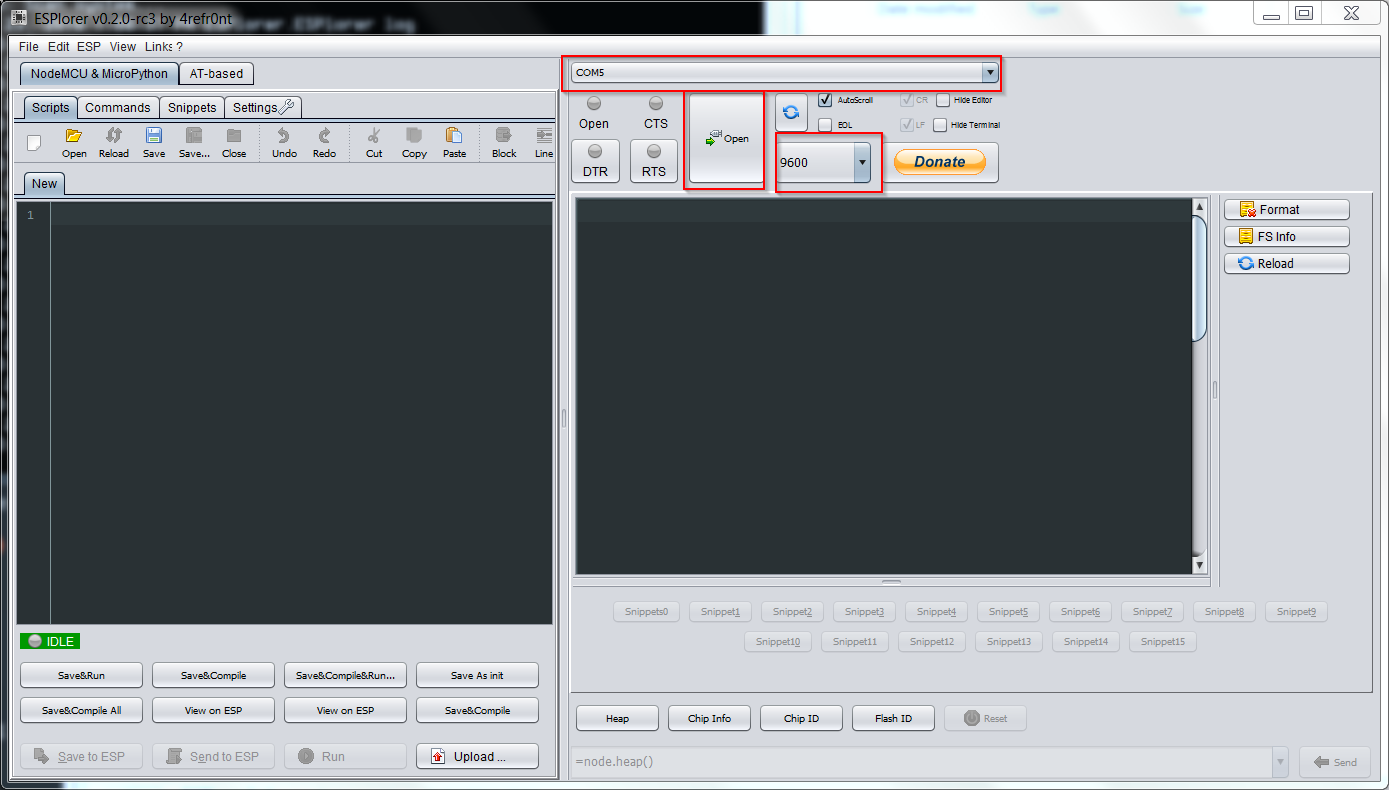
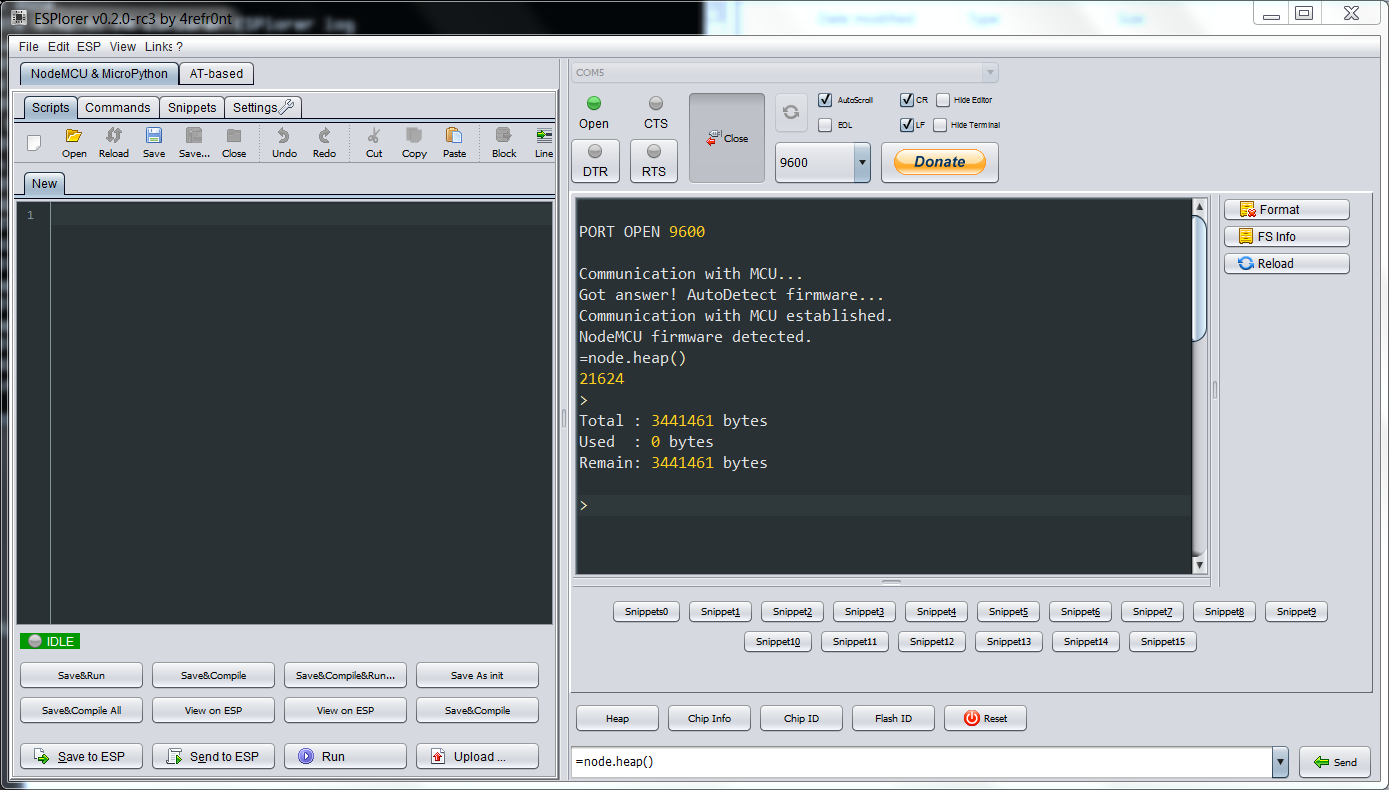
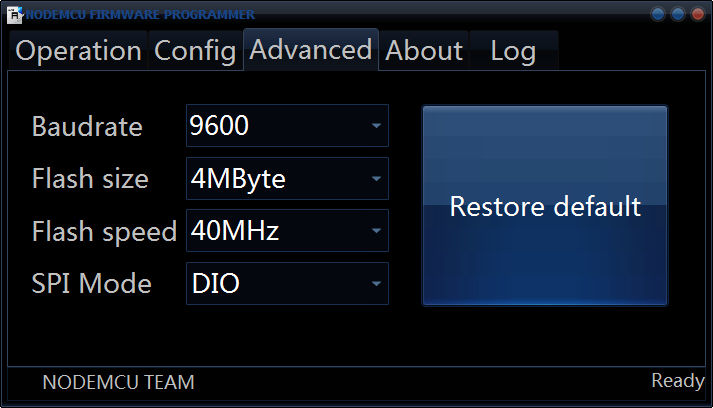
- We change the USB communication speed (speed for our devkit)
//#define BIT_RATE_DEFAULT BIT_RATE_115200
#define BIT_RATE_DEFAULT BIT_RATE_9600
- We change the flash size to 4M (flash of our nodemcu devkit)
#define FLASH_4M
// #define FLASH_8M
// #define FLASH_16M
//#define FLASH_AUTOSIZE
We save the file and proceed to the creation of the firmware with the command
At the end under the bin folder
|
|
sviluppo@debian8:~/esp8266/nodemcu-firmware$ ls ./bin 0x00000.bin 0x10000.bin |
we’ll find two files: 0x00000.bin and 0x100000.bin. We generate a single file nodemcu_float.bin with the command
|
|
srec_cat -output ./bin/nodemcu_float.bin -binary ./bin/0x00000.bin -binary -fill 0xff 0x00000 0x10000 ./bin/0x10000.bin -binary -offset 0x10000 |
At this point we have to enable the sviluppo user to use the usb port with the command
|
|
sudo adduser $USER dialout |
Debian has no need for additional USB drivers. In the presence of virtual machine enable the USB device.
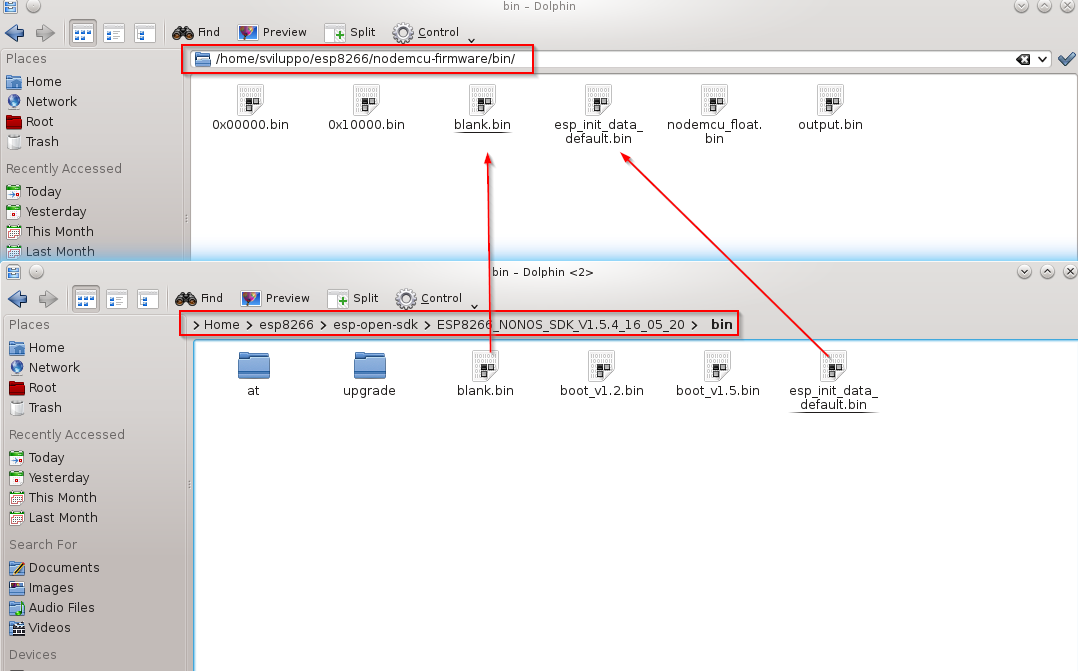
Access to the SDK downloaded and compiled previously; in the bin folder copy the files
- blank.bin
- esp_init_data_default.bin
into the folder we generated the 0x00000.bin and 0x100000.bin files
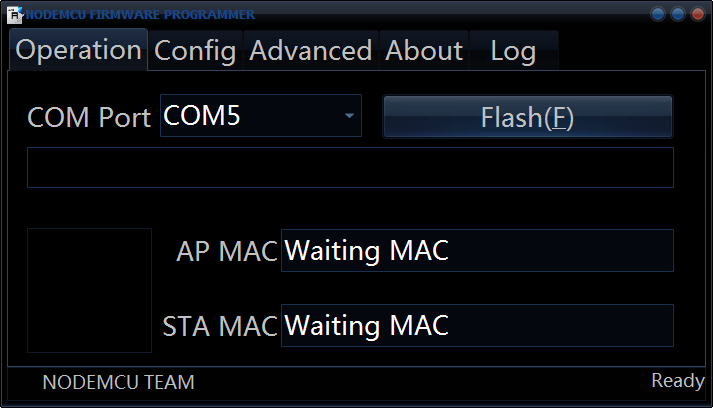
 At this point we are able to flash the firmware on the device using the esptool. In the next article we’ll descrive how to load the firmware
Nodemcu firmware upload with esptool